Device setup
Install a verified app on Google TV
Find the app on the Google TV home screen, check the listing identity, then install and confirm access.
Browse the catalog
Check the hardware model, operating system, supported player and current store before choosing how to install.
Device setup
Find the app on the Google TV home screen, check the listing identity, then install and confirm access.
Device setup
Check the Fire TV device model, operating system and publisher listing before following installation steps.
Device setup
Use the Roku device's store and the app publisher's instructions for the exact model.
Device setup
Read the Samsung model and software version and confirm the developer before installing a TV app.
Device setup
Match the LG TV model, service country and webOS version with the app listing.
Device setup
Check whether the app can stream to another screen or whether you need a TV-native app.
Device setup
Identify the exact app, operating system and official publisher source before installing a package.
Use the TV's store or instructions from the app's developer. Verify the exact model, software and publisher before installation.
The publisher can distribute distinct packages or set different device requirements. Check the store entry for the television or box you use.
Read the device name and generation in its About settings or on its product label. Match the record to Amazon's model specifications.
Check the exact model and operating system. The developer decides which builds it supports and through which installation channels.
Search for the app or open Apps on the device. Verify the publisher and install from the supported listing if it is offered for that device.
Installation and paid access are different steps. Read the app description and sign-in or billing route before buying.
No matching entries. Change the filters or browse the provider directory.

Browsers / casting
See the documented identity, source and information to verify before using it.
Browsers / casting
See the documented identity, source and information to verify before using it.

Browsers / casting
See the documented identity, source and information to verify before using it.

Browsers / casting
See the documented identity, source and information to verify before using it.

Browsers / casting
See the documented identity, source and information to verify before using it.

Browsers / casting
See the documented identity, source and information to verify before using it.

Browsers / casting
See the documented identity, source and information to verify before using it.

Computers / phones / tablets
See the documented identity, source and information to verify before using it.
Computers / phones / tablets
See the documented identity, source and information to verify before using it.
Computers / phones / tablets
See the documented identity, source and information to verify before using it.
Computers / phones / tablets
See the documented identity, source and information to verify before using it.
Computers / phones / tablets
See the documented identity, source and information to verify before using it.
Computers / phones / tablets
See the documented identity, source and information to verify before using it.
Computers / phones / tablets
See the documented identity, source and information to verify before using it.
Computers / phones / tablets
See the documented identity, source and information to verify before using it.

Computers / phones / tablets
See the documented identity, source and information to verify before using it.
Computers / phones / tablets
See the documented identity, source and information to verify before using it.

Computers / phones / tablets
See the documented identity, source and information to verify before using it.

Computers / phones / tablets
See the documented identity, source and information to verify before using it.

Computers / phones / tablets
See the documented identity, source and information to verify before using it.
Computers / phones / tablets
See the documented identity, source and information to verify before using it.
Computers / phones / tablets
See the documented identity, source and information to verify before using it.
Computers / phones / tablets
See the documented identity, source and information to verify before using it.

Computers / phones / tablets
See the documented identity, source and information to verify before using it.
Computers / phones / tablets
See the documented identity, source and information to verify before using it.

Computers / phones / tablets
See the documented identity, source and information to verify before using it.
Computers / phones / tablets
See the documented identity, source and information to verify before using it.

Media apps / middleware
See the documented identity, source and information to verify before using it.

Browsers / casting
See the documented identity, source and information to verify before using it.

Operating systems / TV platforms
See the documented identity, source and information to verify before using it.

Media apps / middleware
See the documented identity, source and information to verify before using it.

Media apps / middleware
See the documented identity, source and information to verify before using it.

Media apps / middleware
See the documented identity, source and information to verify before using it.

Operating systems / TV platforms
See the documented identity, source and information to verify before using it.

Operating systems / TV platforms
See the documented identity, source and information to verify before using it.

Operating systems / TV platforms
See the documented identity, source and information to verify before using it.

Operating systems / TV platforms
See the documented identity, source and information to verify before using it.

Operating systems / TV platforms
See the documented identity, source and information to verify before using it.

Operating systems / TV platforms
See the documented identity, source and information to verify before using it.

Operating systems / TV platforms
See the documented identity, source and information to verify before using it.

Operating systems / TV platforms
See the documented identity, source and information to verify before using it.

Operating systems / TV platforms
See the documented identity, source and information to verify before using it.

Operating systems / TV platforms
See the documented identity, source and information to verify before using it.

Operating systems / TV platforms
See the documented identity, source and information to verify before using it.

Operating systems / TV platforms
See the documented identity, source and information to verify before using it.

Operating systems / TV platforms
See the documented identity, source and information to verify before using it.

Operating systems / TV platforms
See the documented identity, source and information to verify before using it.
Operating systems / TV platforms
See the documented identity, source and information to verify before using it.

Operating systems / TV platforms
See the documented identity, source and information to verify before using it.

Operating systems / TV platforms
See the documented identity, source and information to verify before using it.

Operating systems / TV platforms
See the documented identity, source and information to verify before using it.
Smart TVs
See the documented identity, source and information to verify before using it.

Smart TVs
See the documented identity, source and information to verify before using it.
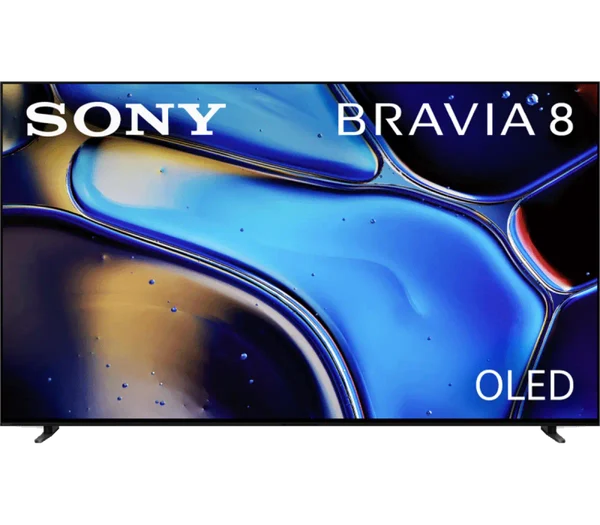
Smart TVs
See the documented identity, source and information to verify before using it.
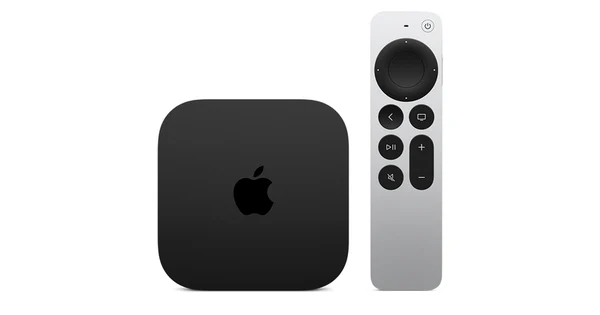
Streaming devices / set-top boxes
See the documented identity, source and information to verify before using it.
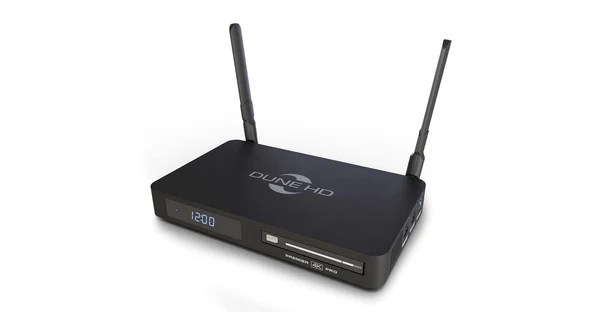
Streaming devices / set-top boxes
See the documented identity, source and information to verify before using it.
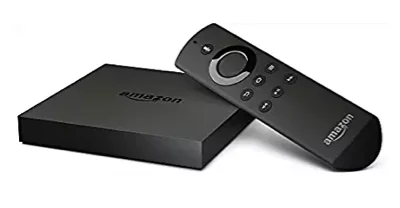
Streaming devices / set-top boxes
See the documented identity, source and information to verify before using it.
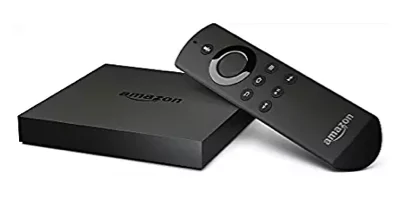
Streaming devices / set-top boxes
See the documented identity, source and information to verify before using it.
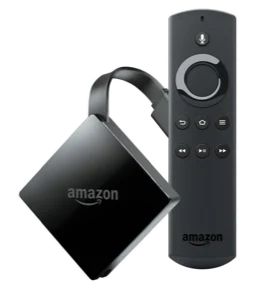
Streaming devices / set-top boxes
See the documented identity, source and information to verify before using it.
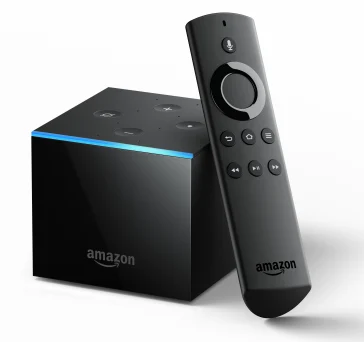
Streaming devices / set-top boxes
See the documented identity, source and information to verify before using it.
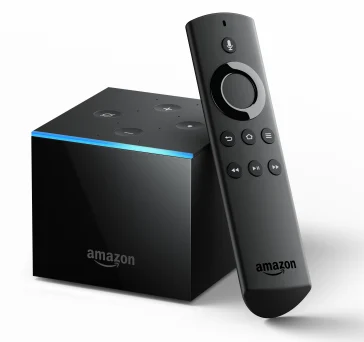
Streaming devices / set-top boxes
See the documented identity, source and information to verify before using it.
Streaming devices / set-top boxes
See the documented identity, source and information to verify before using it.
Streaming devices / set-top boxes
See the documented identity, source and information to verify before using it.
Streaming devices / set-top boxes
See the documented identity, source and information to verify before using it.
Streaming devices / set-top boxes
See the documented identity, source and information to verify before using it.
Streaming devices / set-top boxes
See the documented identity, source and information to verify before using it.

Streaming devices / set-top boxes
See the documented identity, source and information to verify before using it.
Streaming devices / set-top boxes
See the documented identity, source and information to verify before using it.
Streaming devices / set-top boxes
See the documented identity, source and information to verify before using it.
Streaming devices / set-top boxes
See the documented identity, source and information to verify before using it.
Streaming devices / set-top boxes
See the documented identity, source and information to verify before using it.
Streaming devices / set-top boxes
See the documented identity, source and information to verify before using it.
Streaming devices / set-top boxes
See the documented identity, source and information to verify before using it.
Streaming devices / set-top boxes
See the documented identity, source and information to verify before using it.
Streaming devices / set-top boxes
See the documented identity, source and information to verify before using it.
Streaming devices / set-top boxes
See the documented identity, source and information to verify before using it.

Streaming devices / set-top boxes
See the documented identity, source and information to verify before using it.
Streaming devices / set-top boxes
See the documented identity, source and information to verify before using it.
Streaming devices / set-top boxes
See the documented identity, source and information to verify before using it.
Streaming devices / set-top boxes
See the documented identity, source and information to verify before using it.
Streaming devices / set-top boxes
See the documented identity, source and information to verify before using it.
Streaming devices / set-top boxes
See the documented identity, source and information to verify before using it.
Streaming devices / set-top boxes
See the documented identity, source and information to verify before using it.
Streaming devices / set-top boxes
See the documented identity, source and information to verify before using it.
Streaming devices / set-top boxes
See the documented identity, source and information to verify before using it.
Streaming devices / set-top boxes
See the documented identity, source and information to verify before using it.
Streaming devices / set-top boxes
See the documented identity, source and information to verify before using it.
Computers / phones / tablets
See the documented identity, source and information to verify before using it.
Streaming devices / set-top boxes
See the documented identity, source and information to verify before using it.
Computers / phones / tablets
See the documented identity, source and information to verify before using it.
Streaming devices / set-top boxes
See the documented identity, source and information to verify before using it.

Smart TVs
See the documented identity, source and information to verify before using it.

Operating systems / TV platforms
See the documented identity, source and information to verify before using it.

Operating systems / TV platforms
See the documented identity, source and information to verify before using it.

Operating systems / TV platforms
See the documented identity, source and information to verify before using it.

Streaming devices / set-top boxes
See the documented identity, source and information to verify before using it.
Computers / phones / tablets
See the documented identity, source and information to verify before using it.
Supplementary
See the documented identity, source and information to verify before using it.
OTTs.app editorial
Start at the screen you actually plan to watch. The name printed on the remote rarely gives all the information you need. Find the model, operating system, software version and app store country. Compare those details with the current listing from the app publisher. When you buy a streaming term, a screen that can install the player and a profile allowed to use the intended source are separate pieces of the setup.
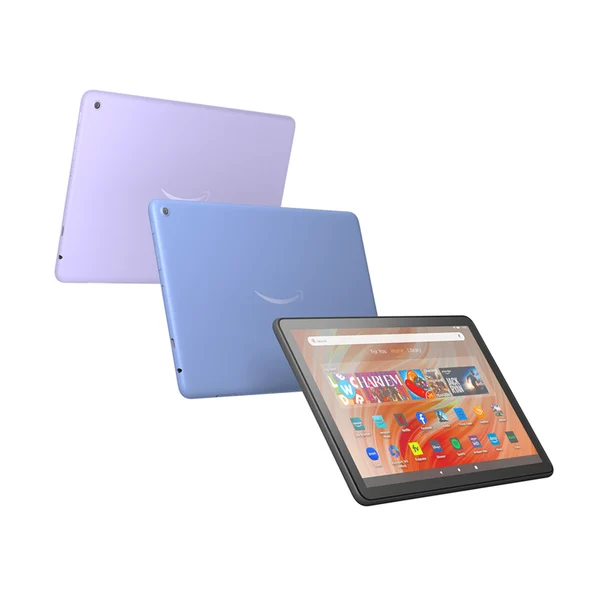
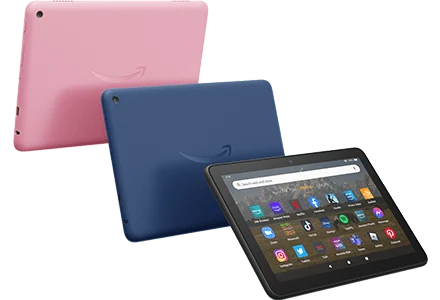
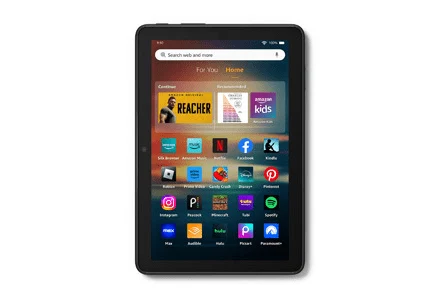
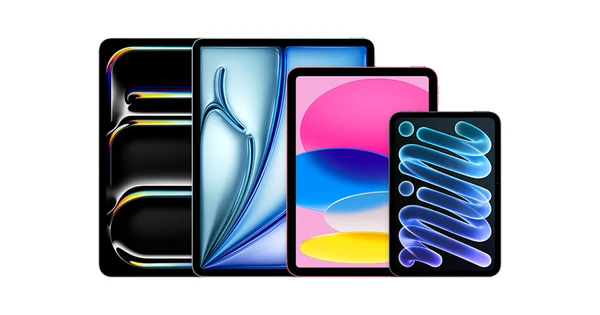
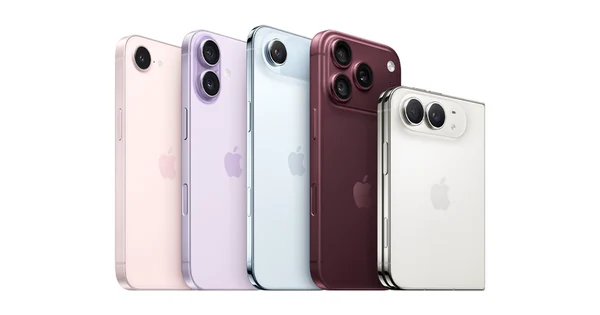
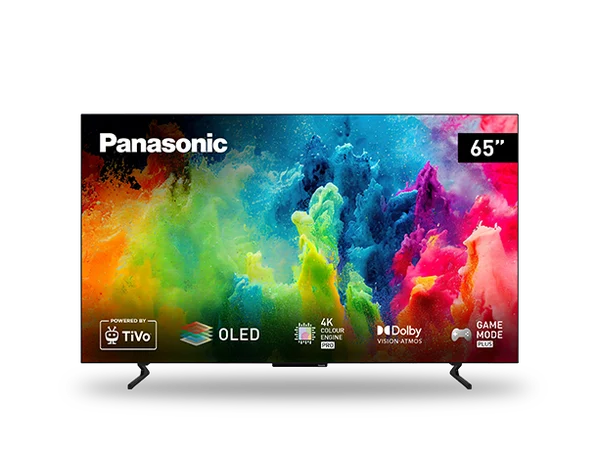
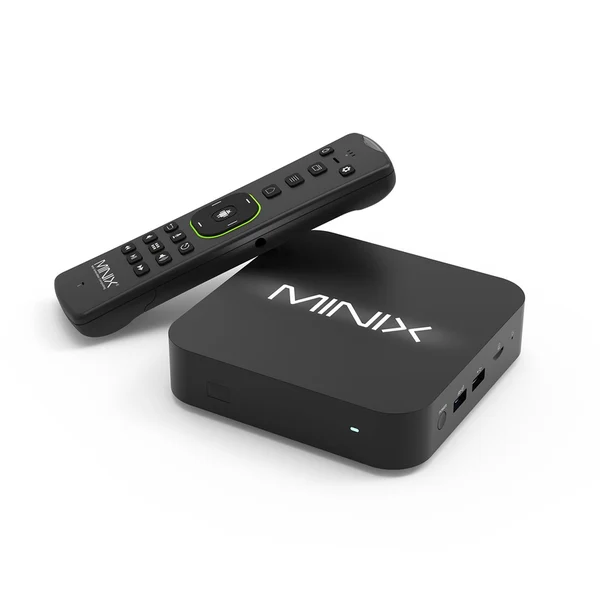
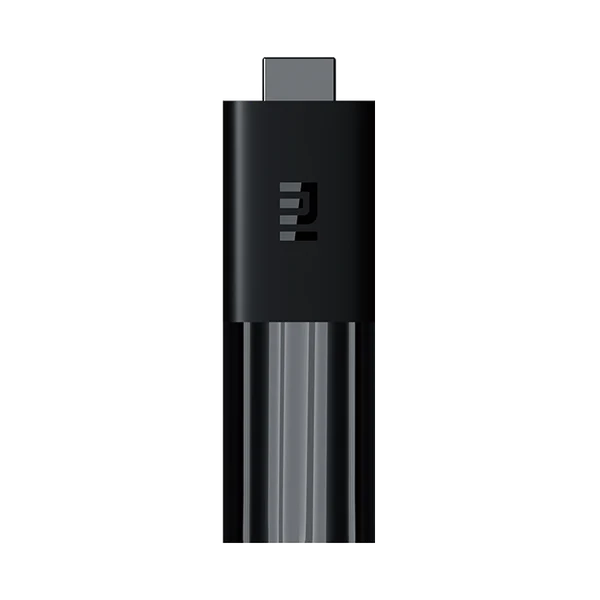
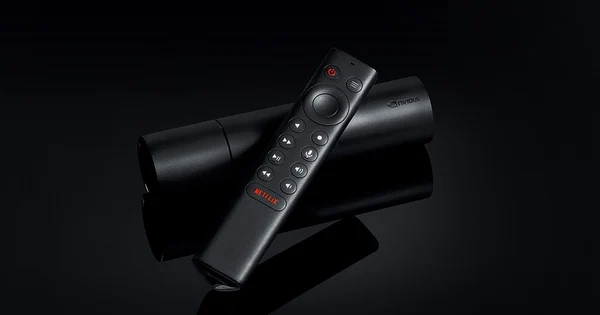
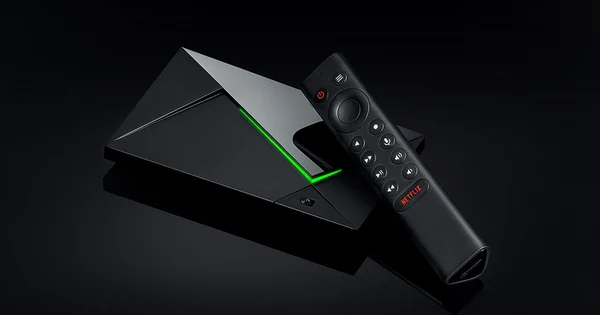
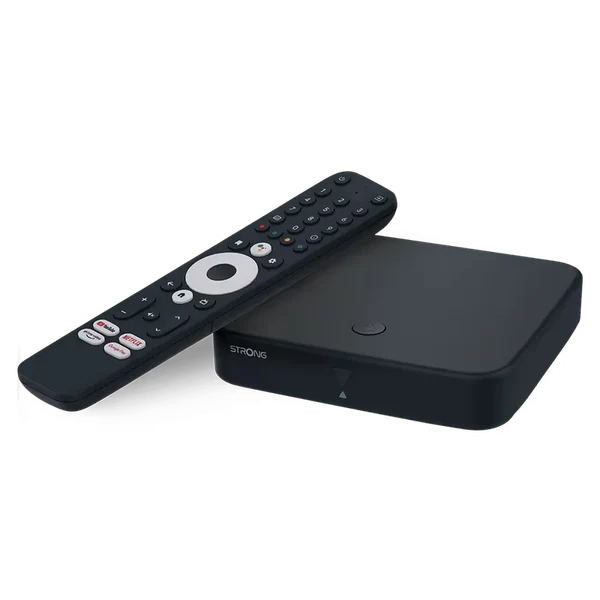
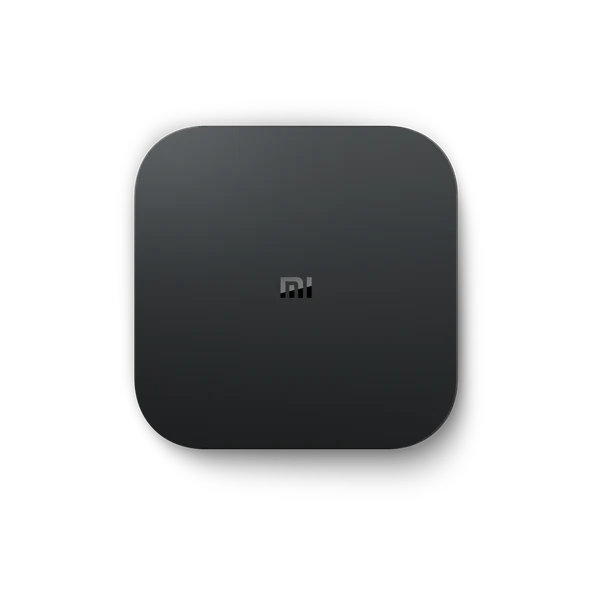
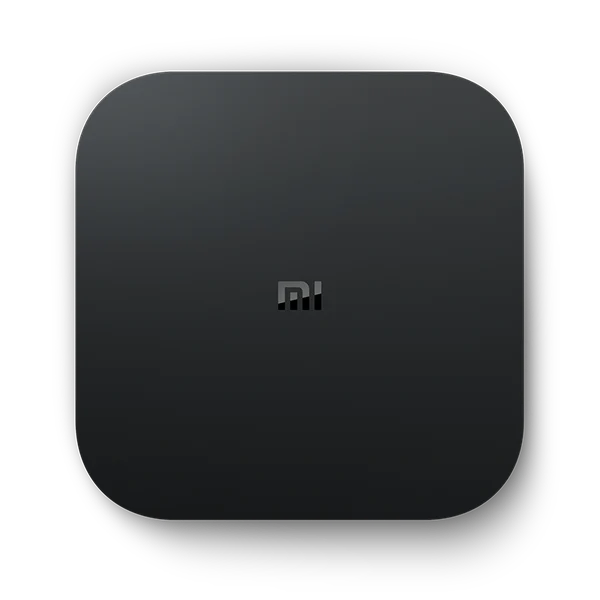
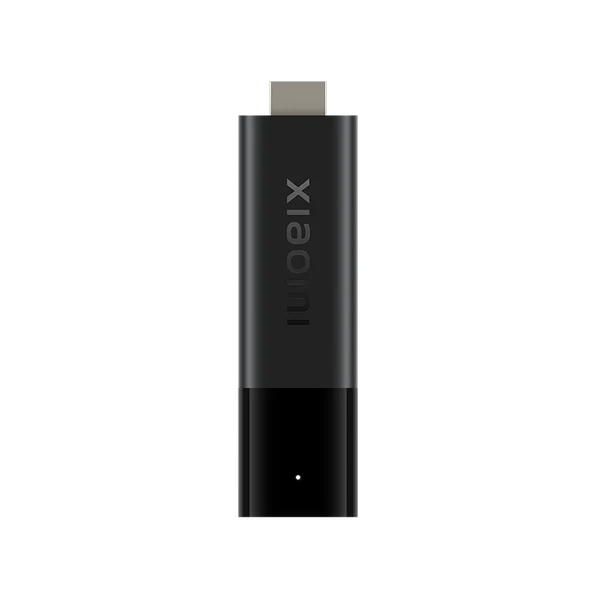
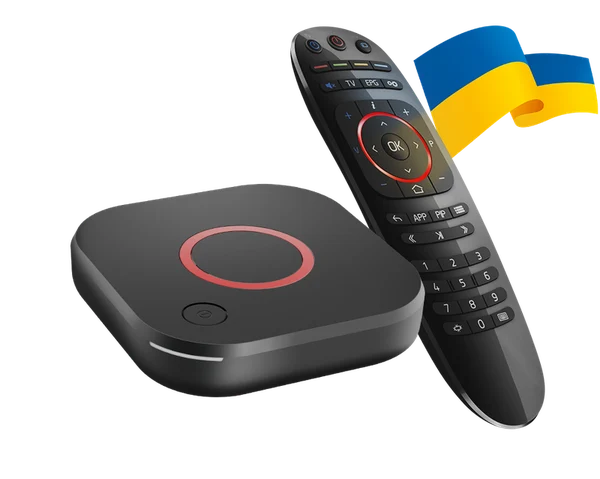
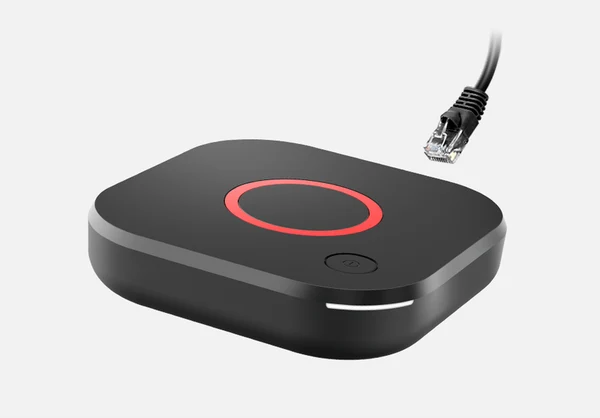
The devices directory includes manufacturer imagery, app identity artwork and original equipment references. Use the named device and the adjoining setup guide to decide which instructions apply. A picture of an older television or another brand's home screen helps identify hardware. Always get the current supported route from the manufacturer or publisher before installing software or paying for a player.
Start with the model identifier from the device's own settings or label. Add the year and operating system if the manufacturer gives them. Record the store country as configured on the device. Use the exact app title and developer from its supported listing. If a provider says you can use a particular player, ask them to confirm the required version and login method for your screen. “Works on smart TVs” is a direction to check, while a model and supported app are a decision.
Keep serial numbers, addresses, account keys and device-bound identifiers in private records. They are rarely needed when discussing an install failure on the forum. Use the actual menu names in your setup notes so another person can find the same screen. Write the app's installation stage, the outcome of opening it and the first authorised playback test on separate lines. The installation photo can look like yours and still show a different operating system.
Use one device as your primary comparison. If a household regularly uses an old television and a recent phone, the TV is often the harder one to change. Start there. Bind the account only after you know the app accepts the authorised method. Add a second supported screen after success on the first one and check the account's allowance before streaming in parallel. That keeps installation, account entitlement and simultaneous playback in separate records.
Then record how the screen is connected. A TV app may send its sound through a soundbar. A separate box may use a different HDMI input. A phone may cast to the TV instead of running a full app on it. The same programme can follow different physical paths in one house. A record of the actual path gives you a useful starting point if sound or picture changes on only one device.
Open the official store or publisher instructions for the platform. A player name can have several editions with similar icons. Compare the developer and supported model before downloading. If the store shows a third-party reseller with a similar title, visit the provider's published app page and identify the exact platform it names. The account method the service supplies can still differ from the video app branded by the store.
Separate a download from an entitlement. A free app may accept only authorised accounts or require its own licence for long-term use. A paid player usually pays for an interface or app features under the developer's terms. The actual viewing account still has its own billing and rights. Save the seller and developer separately. That lets you ask the correct party if the app activates but the service does not open on the same device.
Be cautious with outdated installation articles. A photograph of an old settings screen can omit a new key warning, show a different store or point to a distribution route that the publisher no longer uses. Date matters alongside the model. Use the most recent instructions that actually match the operating system and store. An app name, version and developer identity are better evidence than a screenshot of a logo without a source.
If the app cannot be found, document the result before changing the device. Take down the exact model, configured store country, software version and developer you looked for. Consult the manufacturer for an eligible supported alternative or ask the developer whether that edition is still available. Changing a home account, country or firmware can introduce unrelated differences. A straightforward first step is a publisher listing check on a device and account permitted to use it.
The Android label appears on screens with different form factors. An app built for touch can have an inconsistent remote experience or no published TV edition. A mobile store listing's availability does not establish the app appears in the television's own search. Use the TV’s home search or Apps area and match the developer. The Google TV guide links the official installation instructions for that family.
Open the listed television edition and use its supported installation. Confirm that the app will run remote-first. Try selecting a source, reading the guide and returning to favourites with the expected remote. If a video opens in the browser but the television app gives an unsupported-device message, record both observations. It can be an account, region or certification question rather than a general signal problem. A repeated install of a phone package cannot establish TV support.
Give the device time to finish a supported update before assessing first launch. Record the software version if an update triggered a change in behaviour. If the publisher uses a supported sign-in on another screen, verify the destination from the app or official documentation before entering a short code. Keep sessions private. Test one authorised live or on-demand item from the title list and close the app using its normal controls.
When a guide discusses branded Google TV devices or Android TV boxes, match the exact box. A manufacturer may make a model with its own interface and a separate Android TV device. That matters for app stores and supported playback. On a forum thread list the model generation and what the device actually reports, so a reader with a similar looking box can tell whether your installation applies.
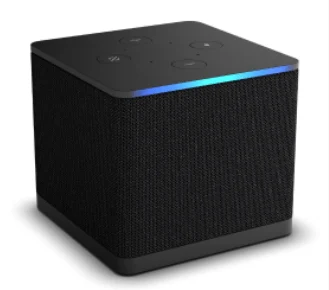
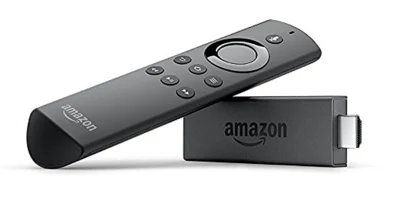
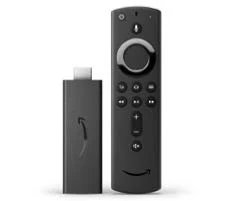
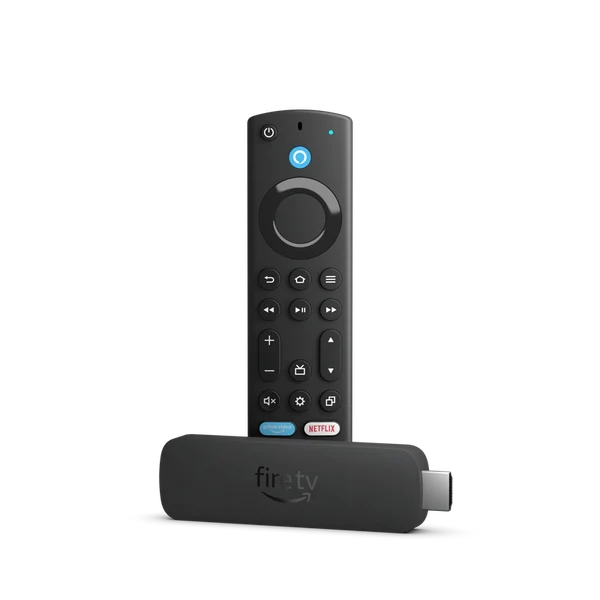
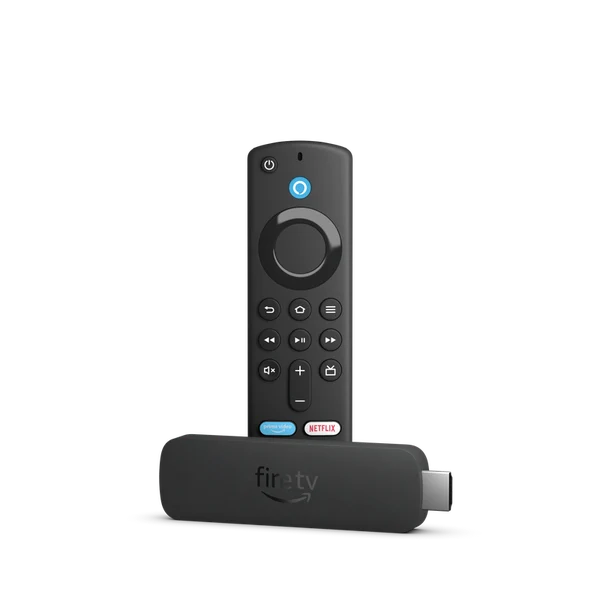
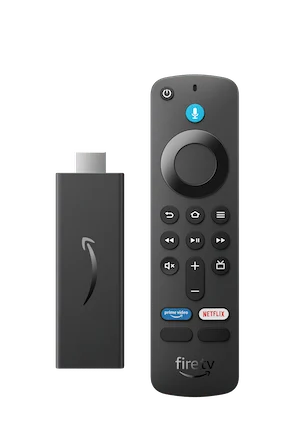
Locate the Fire TV model and generation from the device or manufacturer record. A Stick, Cube and television with built-in Fire TV are different products. Amazon's device specifications and the official app listing tell you which platform the app targets. The Fire TV device guide starts with those sources. A guide for a previous generation can show a button your device no longer has or describe a software family the current model does not use.
Use the supported store route first. Search by the official developer and open its listing on a compatible Fire TV model. Compare the installed version to the publisher’s support notes before changing devices. Give the account time to sync successfully after its allowed setup. If the app starts and only one video fails, record the playback symptom separately. The success of the app installation is already useful evidence.
Check power, network and input for an external stick. The TV remote can turn the panel on while the stick remains awake or loses power. Find the input used by the stick and test turning the device off and back on using the intended controls. Make sure the first viewer knows which welcome screen belongs to the stick and which belongs to the television's native operating system. People sometimes change settings on the wrong side of that boundary when both devices have a streaming home screen.
Some apps link to official downloads. Verify the publisher, exact supported model, release and trust information through the current developer page. An advertised code or link in a conversation cannot identify who built a package. Install only approved software appropriate for your own device and follow the platform's current instructions. If a listing is unavailable, compare another supported device or ask the publisher what route is intended for this generation.
Find the TV model in its settings or on the hardware label. The operating system and store region can differ between a television and an external box plugged into it. Use the native Apps area on a Samsung model that supports the publisher's app. On LG, identify the webOS version and current store route. Read the exact model and regional support from the manufacturer or app provider before relying on another owner’s installation. The Samsung guide and LG guide provide the manufacturer links.
If the app is visible, compare the expected developer and the version in the listing. Use the official install and account flow. On the first launch, separate a prompt from the TV store account and a prompt belonging to the application or service. A new licence screen may belong to the app publisher. Get the correct fee and payment owner from its current listing before using it as the service’s quote. On an older TV it can be easier to keep the panel and choose a supported external device for the app.
If the listing is absent, take down what the store says. A blank search, a message about incompatibility and a notice about the market convey different results. Read the manufacturer’s guidance for your exact model and software. The model identifier, store region and publisher name are the most helpful details for the forum or official support. Avoid attempting Android app packages on a television just because it connects to the internet.
Once the app starts, look at the television experience. Can you find a local station from favourites in a few remote presses. Does the supported search find the desired series. Can you read the information bar and find caption controls. For an older viewer, these are better daily measures than an advertised picture format. Test one source the account is allowed to use and bring the useful result back to the provider or device desk.
Separate the Apple TV hardware, an Apple TV application and the Apple TV subscription service. The same family name can refer to all three. Find the device's operating system and allowed app listing before deciding which product an instruction describes. If a supported content app is available on the Apple TV device, install it through the appropriate store and follow its official sign-in. An app in a phone's store may have a television edition with different features.
For AirPlay, verify the exact receiver, the sending device and the eligibility of the particular content. Both devices may be signed into different accounts or use different portions of the home network. Some publishers impose their own playback requirements. The AirPlay guide links Apple's current instructions. Compare the source app’s normal playback with the authorised route to the receiver using one title. A successful display mirroring session alone does not establish every app can play protected material.
Keep account activation details distinct from casting connection details. The device may ask to trust a receiver or show a short code. The app may separately require sign-in or access through a paid subscription. Hold the programme and entitled account steady as you compare the two routes. If sound or subtitles behave differently on the receiving screen, note which device provides the playback controls and which device is only displaying the picture.
Check how playback resumes after the phone sleeps or moves out of reach. A regular evening viewer who relies on the phone for other tasks may prefer a supported native TV app. Another household might have a simple lawful casting route already installed. Write the actual method next to the device name. When a second viewer opens a normal video, confirm that the accounts and source are being used within their allowed conditions.
Find whether the app publisher offers a supported Roku edition for the actual device. Roku's store and its device information are the first checks. The Roku guide links the official store instructions. If the exact app is missing, a downloaded Android package will not provide the supported route. Ask the publisher for a current account and model match. Use a different supported device if the intended app is not offered for this one.
When installing, read the developer and whether the listing belongs to a broadcaster, player or direct service. A channel added to a Roku home screen can be a path into an app rather than an automatic subscription. Open the application and identify the authorised account flow. Save a current link to any sign-in instructions, then test a programme whose availability you can confirm. A channel-store success message establishes that the app was added, which is separate from the title working.
Give settings a few minutes of ordinary use. Check volume, captions, back navigation, search and whether the main viewer can find the right profile. Some remote controls put app shortcuts side by side. If you replace a device, the household may use one shortcut on the television and another on the Roku. Agree which route is being tested before giving advice about the original equipment.
If the problem relates to account billing, find whether the merchant is the broadcaster, another subscription partner or the store account. Store the latest receipt and compare the account shown in the app. The person who can remove an app from the home screen may be different from the person who can cancel a recurring bill. The best support note names the device, app, seller and exact outcome without including a serial number or payment information.
Record the browser name, current version and desktop operating system. Use the official service’s stated requirements. Choose the viewer profile on the site and one title you are authorised to play. A browser update, sign-in extension, protected playback setting or audio output can change what you see. A plain browser test is useful because another person can often duplicate the same screen under their own authorised account. Do not lower protections or install unknown extensions simply to get a preview to open.
If a publisher supplies a desktop application, identify its developer and exact supported build. Open the publisher's current website or official app store. Keep a link to the supported download and the original instructions for your version. A label such as “Windows player” may cover a specific installer and account flow rather than all desktop applications. On macOS, compare the app requirements with your hardware and system before installing.
A desktop often occupies a role separate from the television. You may use it to organise favourites or watch while travelling. A supported title in the browser at home may have different quality or app behaviour on a second country’s network or account. Record the market, app state and selected display as part of the experiment. If a physical monitor is involved, note how it is attached and whether audio comes through the screen, headphones or another output.
When a browser video fails, compare another legitimate title on the same service and a second authorised service in the same browser. Keep the app version and network steady. Use the exact status message in your report. An authorization or billing issue belongs with the account owner. A video that loads only in a private window can point to browser state. A stream that fails at the same title timestamp on other devices deserves a source check.
Device and app combinations can receive different kinds of account. Some players accept a publisher's sign-in, some require a compatible list or authorised URL, and some models use a device-bound portal when issued. The provider should confirm which one belongs to your route. Check the expected fields in the supported application before using the details. Similar-looking boxes often ask for different information, so write the form label rather than assuming a specific login scheme.
Keep every account secret on the approved screen. If the provider gives you a URL with authentication data, do not put it into a public thread, a third-party checker or an unverified player. Use the exact host and method specified by the seller. If support requests a device identifier, confirm their official secure route first. A helper can answer many format questions from a short description of which field failed without seeing what was entered.
Separate search and playback after loading an authorised list. A list can contain titles and station labels even when one item does not play. A provider may give a separate guide feed for schedule data or include the mapping inside its account output. If the list loads but an expected station is absent, check the edition and market. If the station exists and guide entries are blank, the channel mapping or provider guide data needs its own test. Useful notes record the first failing step.
For a new device, ask whether the existing account can be moved, installed on both devices or only used on a particular model. Installation, registration and concurrent use can be distinct restrictions. Save the current approval and use the seller's supported transfer procedure. Removing the old application or changing the device before understanding the rule can make a routine move harder to undo.
A television capable of 4K can display many lower resolutions. A physically connected streaming stick can send the TV a resolution different from the one the source supplies. A programme might offer a format only on eligible plans, supported screens and approved configurations. Read the official source requirements and check the app’s labelled playback information for a title you can access. If the device shows its HDMI input format, record that value separately.
Hold the programme and network conditions steady during a test. Compare normal operation from the intended seat before changing the app’s picture options. A higher format causes some networks to adapt more frequently. Lowering an app’s preference for a short diagnostic test can make the distinction between a bitrate problem and a title or entitlement error easier to observe. Write down whether the app changed the displayed resolution or simply played continuously. Restore your normal settings after the measurement.
A sports event can have a fast-moving image. A film can have dark scenes and subtitle requirements. One programme is not a perfect control for the other. If a user cares about the picture on sport, choose a real authorised match and check the feed. If they care about dialogue clarity, pick a familiar scene with the intended track. Keep the source title, account, app and room together in your test notes. The TV's branding should never be the only reason to expect a particular experience.
When asking for help, record which part of the display path you measured. For example, “The app reports an HD source and the television displays the input in 4K” describes a sensible output setting with a different source resolution. “The source's details show the desired format on the laptop but there is no matching option on the television model” points toward a device or account condition. A small precise distinction keeps the discussion useful.
Trace the sound from app to device, then to any receiver, speaker, soundbar or headphones. Note where the volume controls actually work. Two apps on the same TV may output different audio formats or selected languages. Begin with an authorised programme that has a known dialogue section. Set the intended volume and compare the sound with a second source using the same equipment. Headphones or the television speaker can be a useful controlled check if your equipment supports them.
Write down if the problem starts only after switching apps, changing tracks or resuming from standby. A separate HDMI box may use its own sound preferences. A receiver can show which format the input is supplying. That can help you describe whether the sound disappears throughout the app or one programme’s track is absent. The technology names in a compatibility card are not a guarantee about every device path in your home.
For a title in another language, compare the actual supplied tracks. The system menu may translate the app labels but the title's available audio comes from its selected source and entitlement. Use a known position in the programme to test. If the audio description or alternate commentary is important, make the same check on the intended device before deciding which player to keep. Note whether the preference remains when you reopen the item.
Captions deserve the same care. Try an actual line of dialogue, verify the language and check the display from your normal seat. Larger text, high contrast and a stable menu may matter more than an advanced format. If two separate relatives share a device, check how the app stores preferences across profiles. A clearly written result leaves a practical record for the next update.
A single cable or router can serve several rooms, each with its own wireless conditions. Give the setup a simple map. Mark the distance and obstacles between the router and the main player. Record whether the app is using an Ethernet link or Wi-Fi. Compare the same authorised source and app at a comparable time. If a person can only reproduce the problem when the television is in one location, the location is a useful clue.
Avoid changing many settings at once. Start with one measurable change, such as using an available supported Ethernet connection or moving a portable external player closer to the access point for the test. If an app must be restarted for a setting to take effect, record that too. A restart and a connection change are two observations, and either could be related to the result.
Test with normal household demand when practical. A setup that has always worked when no one else is home can hit a different situation while another machine uploads files. Note the first minute a symptom occurs and the activity that was happening at the same time. A brief comparison can distinguish all streams stalling together from one programme showing errors on any link. Make changes you can revert and record who else in the house may notice.
Use the shortest safe test available. A cap on test time protects the rest of a household's evening. If the second official source works while only one stream repeatedly fails, document it for the publisher and go back to normal use. If multiple inputs fail in one room, the device and network owner can continue with the relevant equipment. Compare published support instructions for your model before making a lasting router change.
When setting up a television for someone else, ask them to do the everyday tasks while you watch. Let them open the service, choose a favourite and stop playback without prompts. Ask which sound or subtitle option they normally need. Learning the route together makes it easier to detect an interface that is too complex for the actual user. The device photography in the directory can help when you point to a familiar remote or input, while the installed app itself provides the proof.
Save a small route card for the household. It can name the correct input, app icon, support seller and region of the main broadcast without including credentials. Check what happens after sleep and after a normal restart. If the app opens to a different list after the viewer signs out, note the correct account owner and recovery route. A short private setup note is valuable when someone else helps months later.
Offer a simpler supported alternative when the main screen is difficult to use. An external device can supply a better app route, although it adds an input and sometimes a remote. A native broadcaster app may provide a particular reliable programme without changing the rest of the setup. Compare the chosen method in ordinary use. Let the person who watches most decide which flow feels straightforward, then keep that device evidence beside the price.
At setup handoff, ask the user to change only the settings they need. Show where the app stores favourites and how to identify the currently active profile. Explain who actually manages the subscription and who supports the television. That conversation gives the household a better first report when something changes. It also keeps anyone from handing over account data to the wrong place.
Before replacing a TV or streaming box, write down the existing app and service arrangement. Ask the app developer whether a paid licence can move and the service whether the old stream needs to be closed or unregistered. Keep the seller receipt. Confirm the new model has a supported current app. If a second television stays in use, check the number of screens that are allowed to play at the same time before testing both.
Test the new route with one authorised title and an ordinary live feed you know. Compare captions and sound through the intended equipment. When the new app requires a separate license, include that fee in the price decision. A target screen can be physically connected but lack the exact software or supported account route. Save a record of that test to avoid a long billing conversation after returning equipment.
Sign out of old devices you plan to sell or share. Use the manufacturer’s instructions and the service’s account controls where available. Keep forum posts free of device identifiers and personal links. If a device still appears in the account after you replace it, ask the publisher how the session expires or can be managed. A note that says “sign out of the old living-room stick” is clearer for another household member than a broad instruction to delete passwords everywhere.
Make changes at a time you can test. Choose a normal evening with access to the main screen and help if needed. Keep the original working device available until the approved replacement passes the basic checks. The difference between a temporary comparison and a permanent replacement is one supported test. Keeping the result makes it easier to plan the next upgrade without relying on general marketing descriptions.
Start with one sentence containing the model, exact app and first failed step. Give the software version and store region if they affect the route. Describe a known authorised programme and the time of the attempt when relevant. Add the one change you tested and a control source's result. You can usually make that a paragraph. A long list of every setting the device has can hide the right clue.
Share the official listing, help article or manufacturer page you checked. If the version matters, identify it. If someone suggests a change for a different operating system, ask which part applies to your screen. It is common for two forum members to be discussing devices with the same marketing label and different installed software. Clearing up the model often makes the answer simpler and more reliable.
Avoid fabricating certainty. A successful local test establishes what worked under the stated setup. A failed lookup shows that you did not find a supported listing in the conditions recorded. Keep those outcomes tied to the version, model and market. If you get a reply from the publisher, note its date and the action it recommends. Another reader can check whether the same conditions still apply to them.
When the issue is resolved, add the cause you confirmed and the exact change that helped. Leave the useful unsuccessful test too, if it narrowed the work. A person with a similar television can read the report and identify their first diagnostic step. The directory then does the job a picture alone cannot do. It connects a physical device, a supported application and a reproducible route to one programme.
Before a major device or app update, note the current working version and one authorised programme you can use as a control. Use the manufacturer's or publisher’s normal update instructions. Once the update finishes, retest the route the main viewer uses, including access, guide, captions and resume. This is less work than testing every menu. It gives you a direct observation of whether the common viewing path changed.
If an app no longer supports the installed platform, check the publisher’s current supported options for that model. An authorised web or external device route can preserve the account while you decide whether replacing equipment is worth it. Verify the affordability, viewing conditions and controls of the alternative using the device available to the household. A planned alternative can keep an evening on schedule while the device owner reviews the update.
Keep a test record if you file a report. Include the before and after app version, first failed step, and a time and date for the repeatable case. Separate a model issue, an account entitlement issue and a temporary source problem. The developer can often answer a version-specific question more quickly than a general complaint. The service seller can identify the relevant access terms when the app still starts normally.
For a continuing household arrangement, decide when to revisit the support record. A new provider notice or a planned move can be a good reason to verify the screen again. Use your actual device and authorised access as the baseline. A documented change gives you a reason to switch method if the original one no longer works.
Leave a simple record near the television or in the shared household notes. Use words the main viewer recognises. State the input, compatible app, seller and which remote opens the favourites. Include one ordinary test the family can run if the screen returns to the wrong home page. The record should be readable without passwords, account links or private identifiers.
If the viewer can follow the card, ask them which step still feels difficult. Then decide whether the issue belongs to the screen, the app or the subscription itself. The developer may have clearer instructions for a menu, the appointed seller can clarify the account limit, and the household can decide how to operate the hardware. Write the answer in the same place. It is a small practical way of keeping the device, software and access decisions linked.